
Software
Microsoft Edge is faster, more secure, and packed with hidden features that can transform your browsing experience. These seven pro tips will help you customize your browser, boost performance, and work smarter—not harder—every time you open Edge.
Enable Immersive Reader for Focused Reading
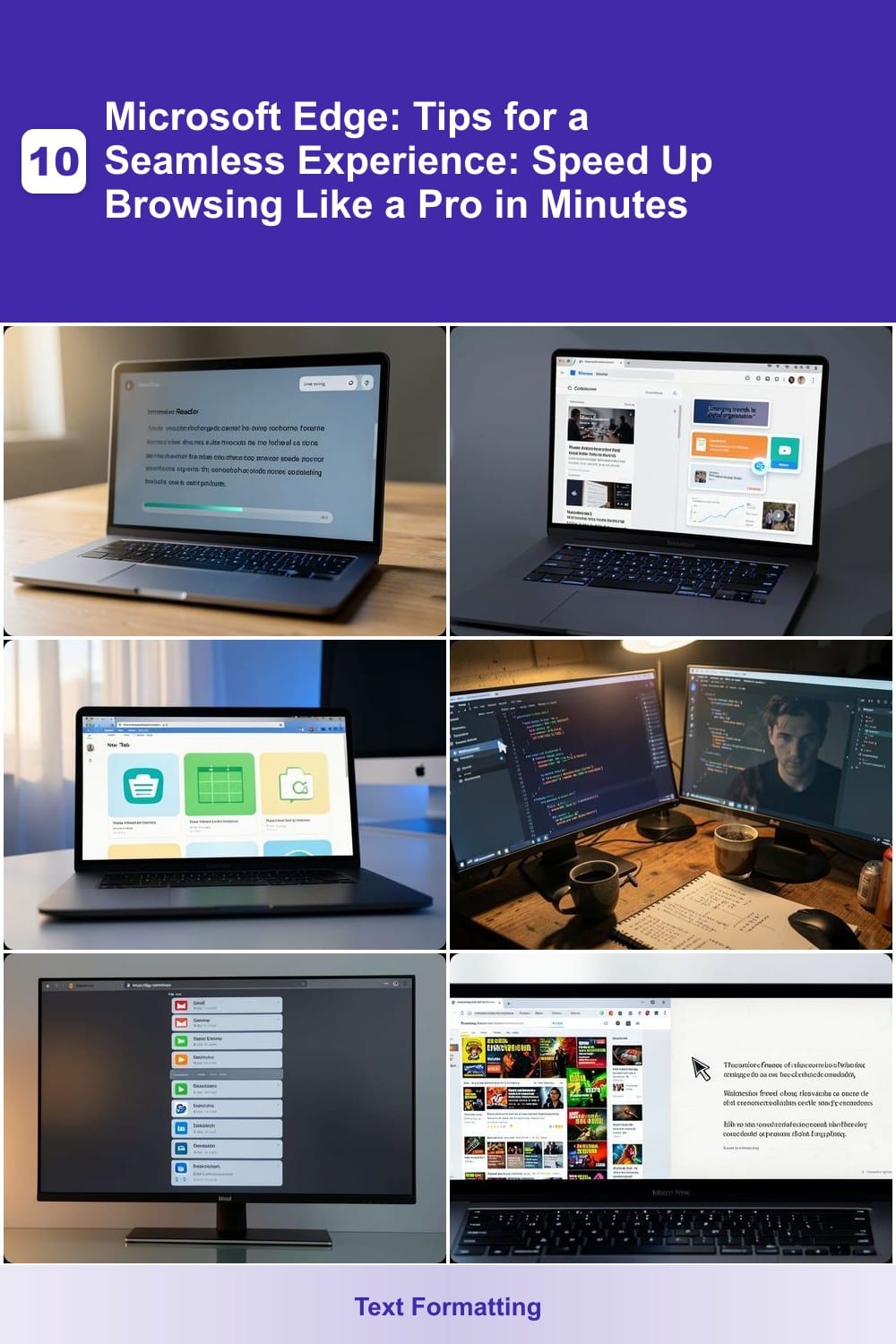
Drowning in dense research papers or long-form articles? Microsoft Edge’s Immersive Reader transforms chaotic text into a distraction-free, customizable experience—like having a digital reading coach in your browser. With adjustable font sizes, line spacing, and even text-to-speech narration, this tool helps you absorb content faster while reducing eye strain.
To activate it, simply highlight any text on a webpage, click the three-dot menu, and select “Immersive Reader.” From there, tweak settings like font style (Dyslexia-friendly options included!) or background color to match your preferences. The text-to-speech feature lets you listen to articles hands-free—ideal for commutes or multitasking. It even includes a built-in dictionary and translation tools for instant clarity.
Perfect for students cramming for exams, researchers analyzing documents, or professionals digesting lengthy reports, Immersive Reader turns overwhelming text into a manageable, engaging experience. ⚡
Use Collections to Organize Web Research
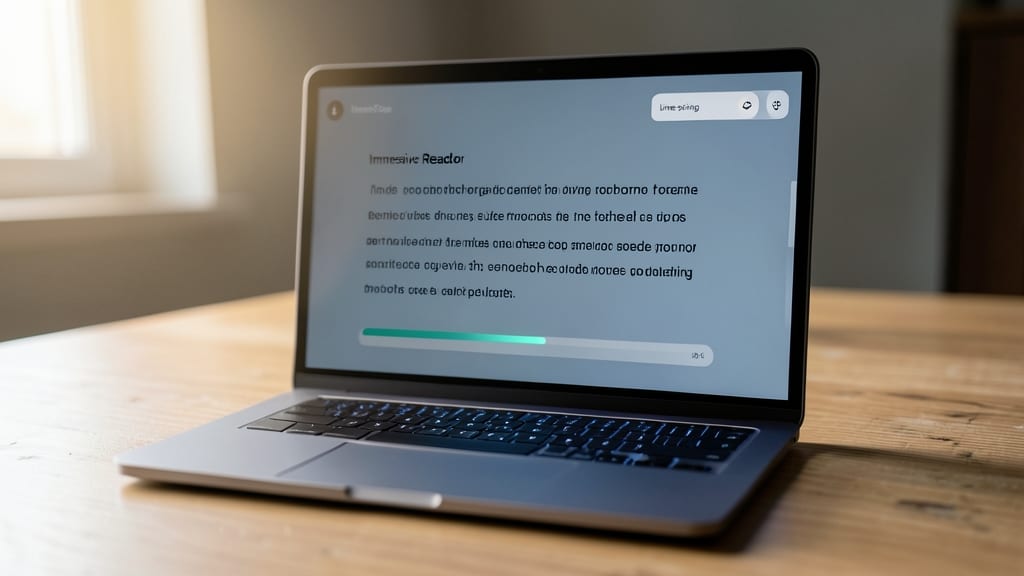
Struggling to keep track of research across multiple tabs or devices? Microsoft Edge’s Collections feature turns your browser into a digital research assistant, letting you clip text, images, and videos directly into a virtual notebook with just a few clicks.
To get started, highlight any text or image on a webpage, then click the three-dot menu and select "Add to new collection" (or "Add to existing" if you already have one). You can even annotate clips, add notes, and organize everything into folders—all while keeping your work synced across Windows, Mac, iOS, and Android. Need to collaborate? Share collections with teammates via a simple link, making group projects effortless.
Perfect for students writing papers, researchers compiling data, or professionals managing client projects, Collections replaces scattered tabs and sticky notes with a single, searchable workspace. ✨
Customize Startup Pages with Pinning
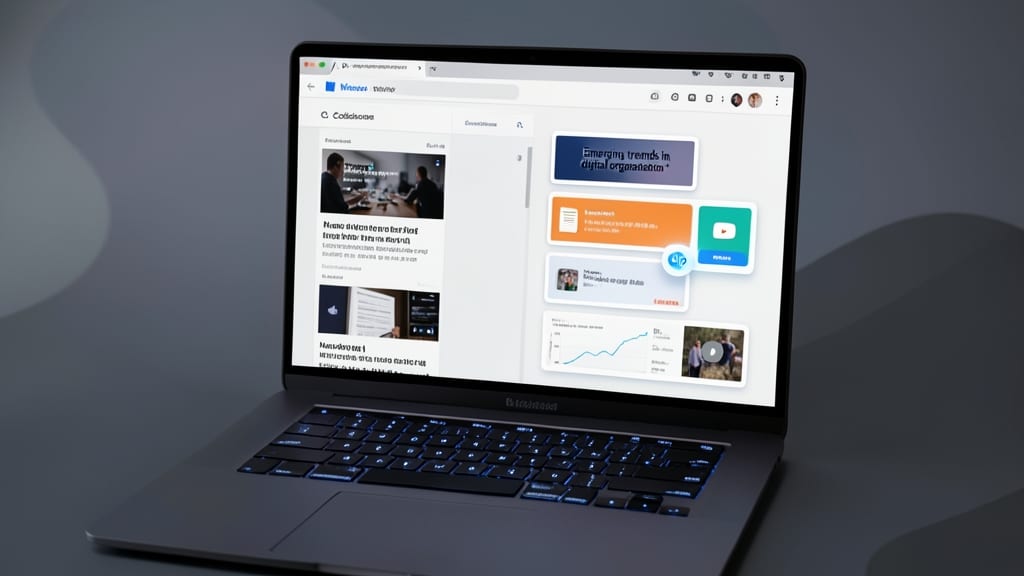
Tired of scrolling through dozens of bookmarks or a cluttered home screen every morning? Microsoft Edge’s pinning feature lets you create a personalized New Tab page with your most-used sites—like Outlook, Trello, or Google Drive—displayed as large, clickable tiles. This eliminates the need to hunt for tabs or rely on bookmarks, cutting your startup time in half.
To get started, simply right-click any site in your browsing session and select "Pin to New Tab page." You can rearrange tiles by dragging them, and even customize their size for quick access. The feature syncs across all your devices, so your pinned sites follow you whether you're on a laptop, tablet, or phone.
Perfect for remote workers, students, or anyone juggling multiple tools daily, this tweak turns your New Tab page into a productivity hub. ⚡
Enable Dark Mode for Eye Comfort

Late-night coding sessions or dimly lit coffee shops? Microsoft Edge’s dark mode is your eyes’ new best friend, designed to cut glare and reduce strain during those all-night productivity sprints.
With just one click, you can toggle between light and dark themes (via Settings > Appearance), and the switch also extends to OLED screens, where black pixels consume zero power—boosting battery life by up to 30% on laptops. The sleek design even adapts to system-wide dark mode settings on Windows 10/11, ensuring consistency across your devices.
Perfect for developers, night owls, or anyone working in low light, this feature turns your browser into a gentler companion for your eyes. ✨
Use Vertical Tabs for Multitasking
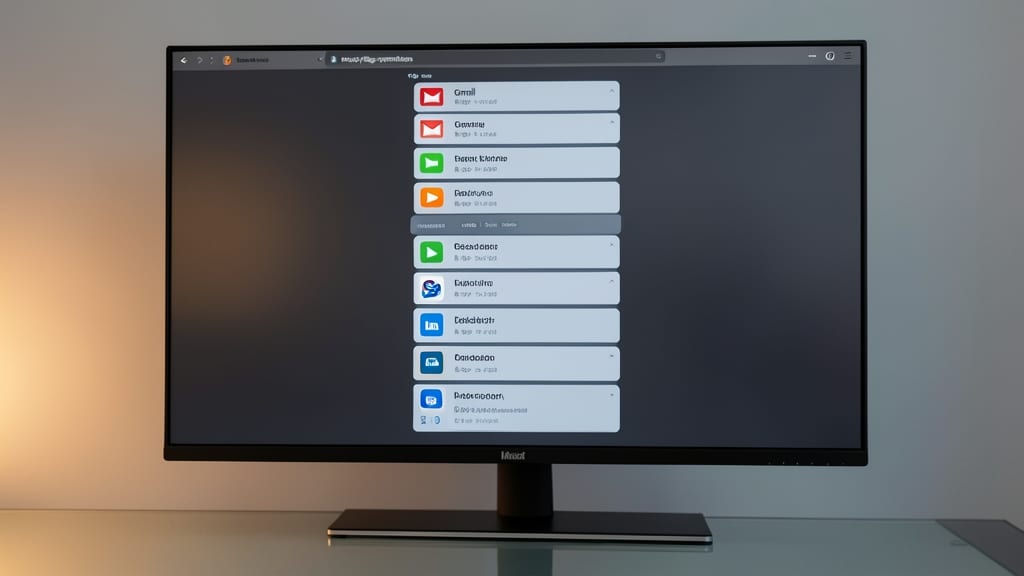
Tired of scrolling through endless horizontal tabs that clutter your screen? Microsoft Edge’s vertical tabs feature turns your browser into a sleek, side-scrolling workspace—perfect for managing dozens of open pages without losing sight of your workflow.
To enable it, type edge://flags/#edge-vertical-tabs in the address bar, toggle the setting to “Enabled”, then restart Edge. Once active, your tabs appear as a scrollable sidebar, complete with live thumbnails of each page. This layout is a game-changer for developers juggling GitHub repos, terminal sessions, and docs, or writers balancing research, drafts, and reference sites.
Ideal for power users with wide monitors or those who prefer minimalism, vertical tabs keep your main workspace uncluttered while giving you instant access to every open window. ⚡
Speed Up Browsing with Reading View
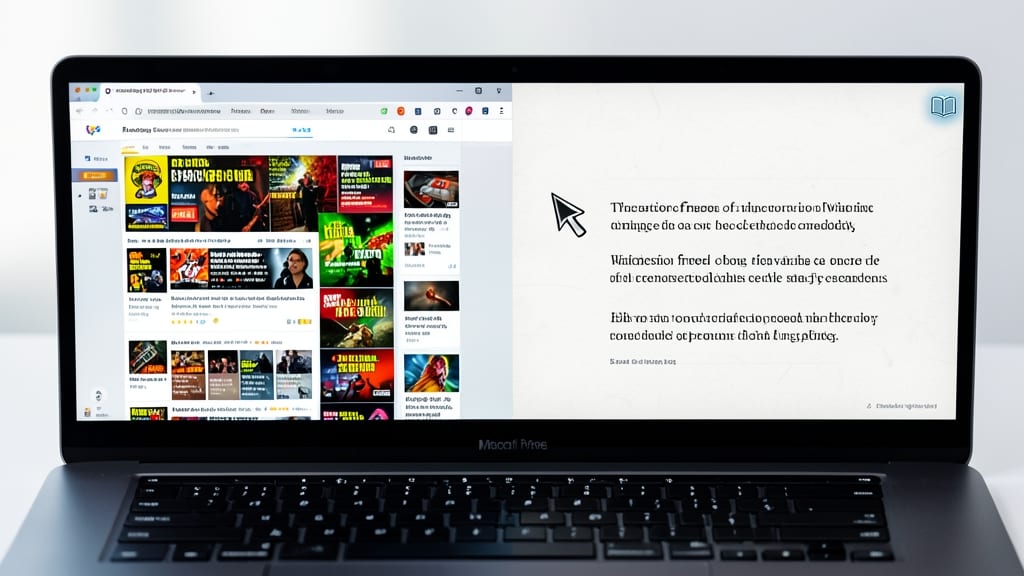
Tired of wasting time clicking through ads and cluttered layouts while trying to read an article? Microsoft Edge’s Reading View strips away all distractions with a single click, transforming chaotic websites into sleek, distraction-free pages. Just click the Reading View icon (looks like an open book) in the address bar, and Edge instantly removes ads, sidebars, and pop-ups, leaving only the clean text and images you care about.
This feature works on any website—news articles, blogs, or even messy product pages—and lets you adjust font size, line spacing, and even text color for optimal readability. It’s especially useful for long-form reading, like research papers or technical guides, where every second counts. Plus, it syncs across devices, so your preferences follow you from laptop to tablet.
Perfect for commuters, journalists, or professionals who need to digest information quickly, Reading View turns chaotic web pages into a seamless reading experience—no extensions or extra tools required. ✨
Secure Your Data with Password Monitor
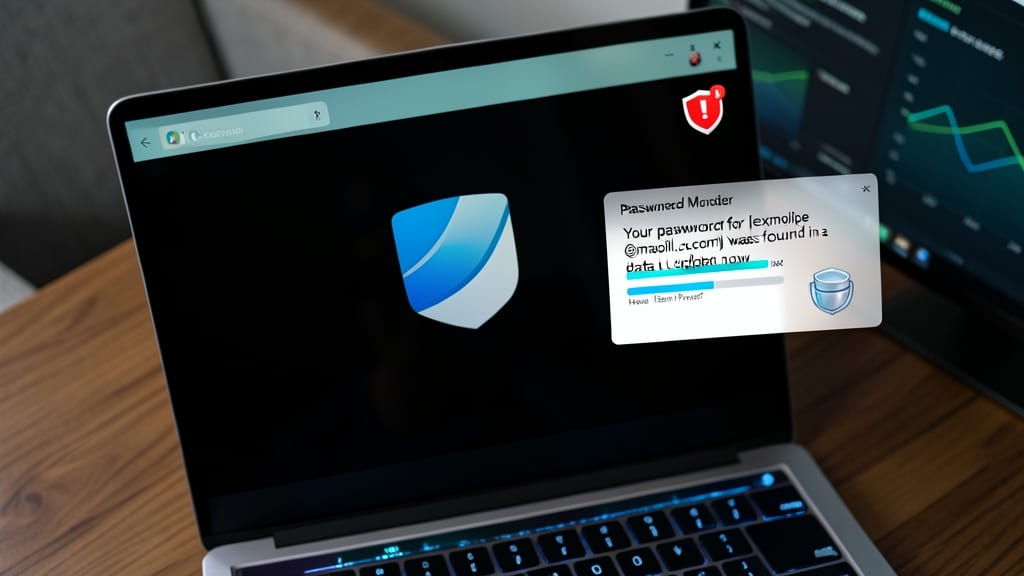
Worried about hackers exploiting weak passwords? Microsoft Edge’s Password Monitor acts as your digital security guard, scanning saved passwords against real-time breach databases like Have I Been Pwned. It flags compromised accounts instantly, so you can update them before fraudsters strike.
Beyond breach detection, it generates strong, unique password suggestions for weak entries and even auto-fills forms securely using Windows Hello or your Microsoft account. The built-in password health score gives you a quick snapshot of your online security posture—no third-party tools required.
Perfect for freelancers, remote workers, or anyone managing multiple accounts, Password Monitor turns password security from a hassle into a hands-off process. ⚡