
Software
Microsoft Teams isn’t just for businesses—it’s a game-changer for educators. Discover how this powerful tool transforms classroom communication, simplifies lesson planning, and keeps students engaged, all while saving teachers precious time.
Seamless classroom communication hub
Say goodbye to the chaos of scattered emails, missed paper notes, and forgotten reminders—Microsoft Teams’ classroom communication hub consolidates everything into one organized, searchable space. No more digging through inboxes or losing track of important updates; every announcement, assignment reminder, and discussion lives in a dedicated channel where parents, students, and staff can stay on the same page.
With real-time chat, calendar integrations, and @mentions, you can instantly notify students about deadlines, share last-minute updates, or even host quick Q&A sessions—all without leaving the platform. The threaded discussions feature keeps conversations tidy, while file attachments let you share documents, links, or multimedia directly in posts. Plus, read receipts confirm who’s seen your messages, so you never wonder if critical info got lost in the shuffle.
Perfect for busy educators juggling multiple classes or hybrid teachers balancing in-person and virtual students, this hub ensures no one misses a beat. Whether it’s a pop quiz reminder or a field trip sign-up, everything stays visible and accessible—no more playing phone tag or chasing down paper notes. ⚡
Integrated file sharing for lessons
Say goodbye to the frustration of lost USB drives and mismatched file versions—Microsoft Teams’ integrated file-sharing system keeps all lesson materials, student submissions, and updates in one secure, cloud-based hub. No more chasing down missing assignments or sifting through endless email attachments.
With real-time collaboration, teachers can upload worksheets, rubrics, or multimedia lessons once and share them instantly with the entire class. The version history feature tracks changes automatically, so you never lose track of edits. Students submit work directly through Teams, and teachers can provide feedback—all without leaving the platform. Plus, permissions controls ensure sensitive files stay private while still being accessible to approved users.
This is a game-changer for hybrid or remote teachers who need a reliable way to distribute and collect assignments without the chaos of physical or email-based workflows. Your lesson plans and student work stay organized, secure, and always up-to-date. ✨
Live classroom sessions with screen sharing
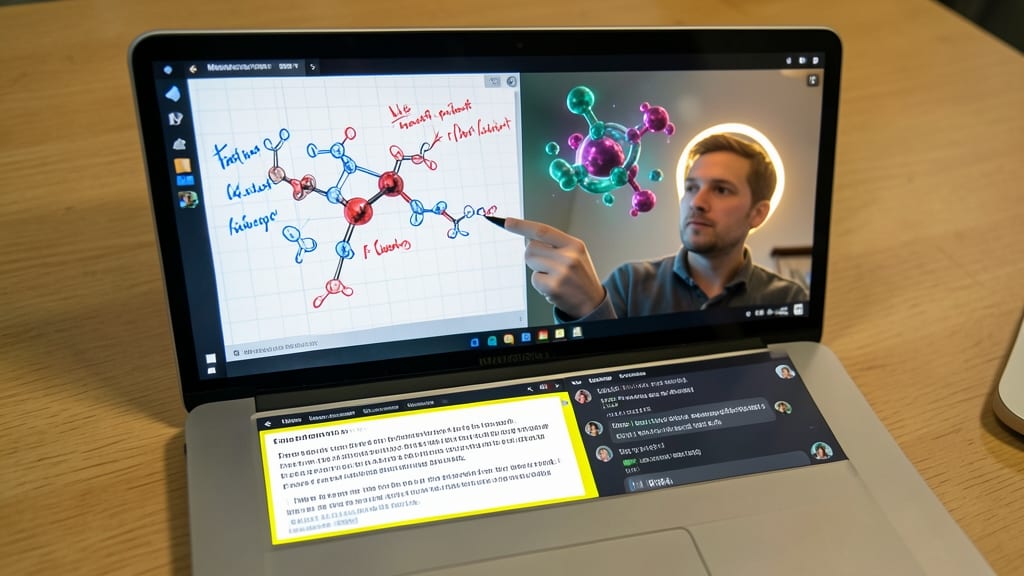
For STEM teachers who rely on visuals and real-time interaction, Microsoft Teams’ live classroom sessions turn virtual teaching into an immersive experience—like having a whiteboard, lab partner, and audience all in one place.
With screen sharing, teachers can annotate documents in real time, solve equations on a shared whiteboard, or demo coding projects while students follow along. The live polls feature lets you gauge understanding instantly, while the reactions and chat tools keep students engaged—even when they’re shy about speaking up. For subjects like physics or engineering, where visuals clarify complex concepts, this makes remote learning feel nearly identical to in-person instruction.
Perfect for hybrid classrooms or snow days, this feature ensures no student misses critical demonstrations—whether it’s a chemistry experiment or debugging code. 💡
Automated gradebook sync with OneNote
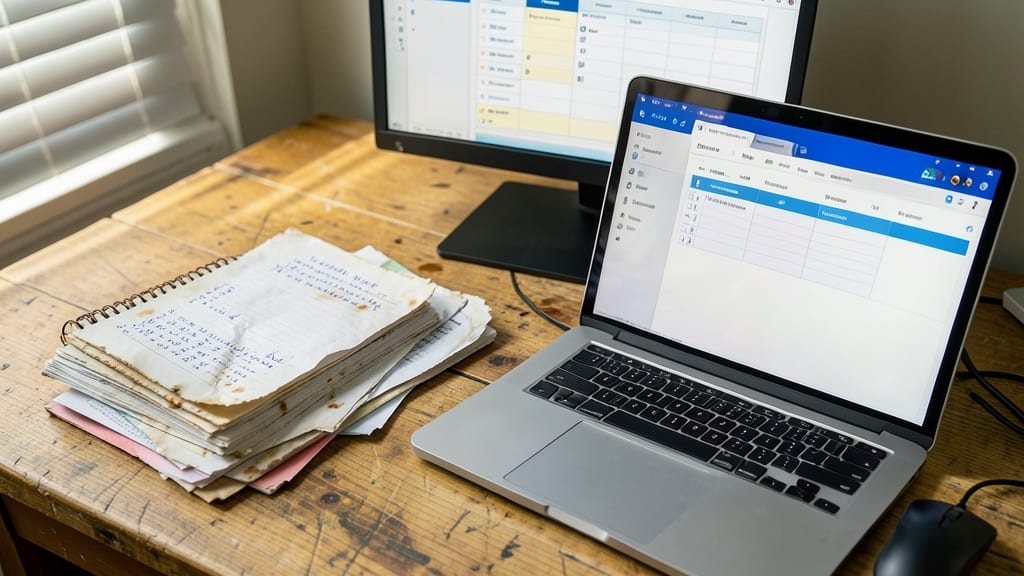
Tired of spending hours manually transferring grades between notebooks, spreadsheets, and paperwork? Microsoft Teams’ automated gradebook sync with OneNote cuts that time by 40%—letting you focus on teaching instead of data entry.
Here’s how it works: Use OneNote’s digital notebooks to track assignments, then sync them directly to Excel or Google Sheets with just a few clicks. The integration automatically populates grades, comments, and rubrics, while real-time updates ensure no data gets lost in translation. Plus, you can set up custom templates for different subjects, so your grading workflow stays consistent.
This feature is a lifesaver for high-school teachers juggling multiple classes or administrators managing large gradebooks. Say goodbye to late-night paperwork and hello to streamlined efficiency. ✨
Parent-teacher collaboration tools
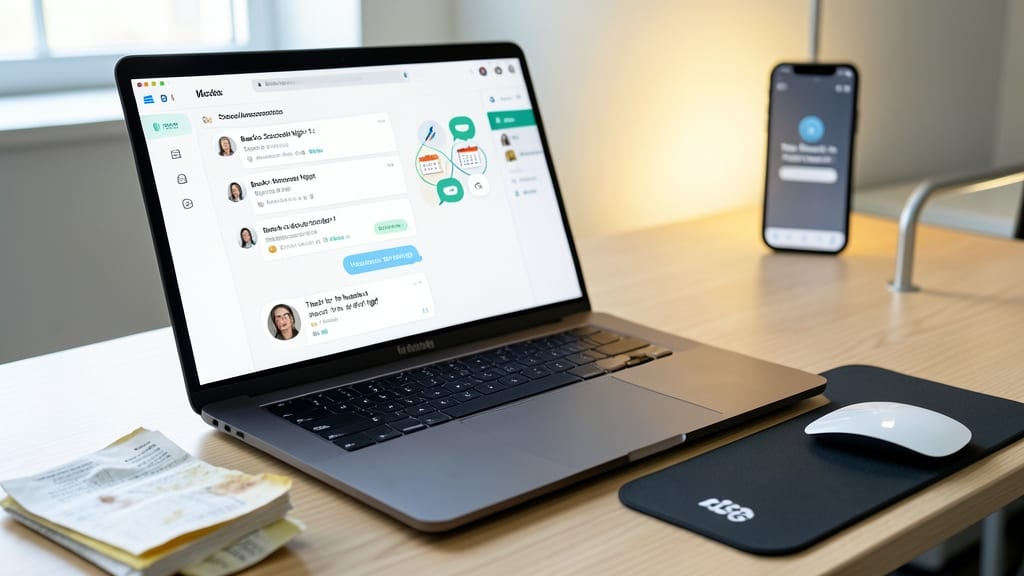
Tired of parents drowning in emails or missing critical updates? Microsoft Teams’ dedicated parent channels create a focused space for school news, event reminders, and one-on-one chats—all without cluttering your inbox.
With instant messaging and shared calendars, you can instantly notify families about field trips, deadlines, or last-minute changes. The @mentions feature ensures no message slips through the cracks, while file-sharing lets you post permission slips or volunteer sign-ups directly in the channel. Plus, translation tools break language barriers for multilingual families.
This is ideal for teachers juggling PTA committees or hybrid classrooms—keeping everyone aligned without the chaos of scattered emails or forgotten voicemails. ✨
Customizable classroom tabs for organization
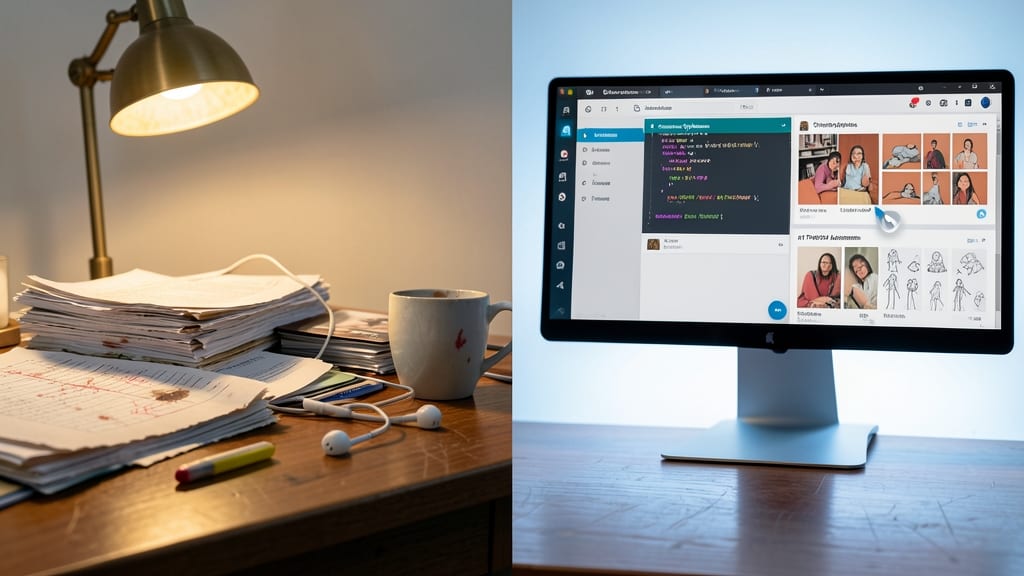
Drowning in a sea of loose papers and digital clutter? Microsoft Teams’ customizable tabs transform your workspace into a subject-specific command center. Whether you’re teaching literature, coding, or art, you can pin tabs for syllabi, rubrics, and student portfolios—keeping everything visible and accessible in one spot.
Create dedicated tabs for lesson plans, grading templates, or project galleries with just a few clicks. The drag-and-drop interface lets you rearrange tabs to match your workflow, while shared access ensures students can view their portfolios or rubrics without confusion. No more digging through folders—just a clean, organized hub tailored to your teaching style.
This feature is a lifesaver for subject specialists who juggle multiple resources, like art teachers managing digital portfolios or STEM instructors tracking coding projects. Organize your chaos in minutes! ✨
Breakout rooms for group work

Need to recreate the energy of in-person group work without the chaos? Microsoft Teams’ breakout rooms let you split students into virtual teams with just a few clicks—perfect for language practice, debates, or collaborative projects.
Create up to 50 breakout rooms (or auto-assign by headcount), set timers, and even broadcast messages to all groups at once. The shared whiteboard and document collaboration features let teams work together in real time, while teachers can monitor progress or jump in to help. No more shuffling desks—just seamless, digital teamwork.
Ideal for language teachers running conversation clubs, history teachers hosting mock debates, or science teachers assigning lab group projects. Your classroom just got a whole lot more interactive—without leaving the platform. ✨
Built-in polls and quizzes for engagement
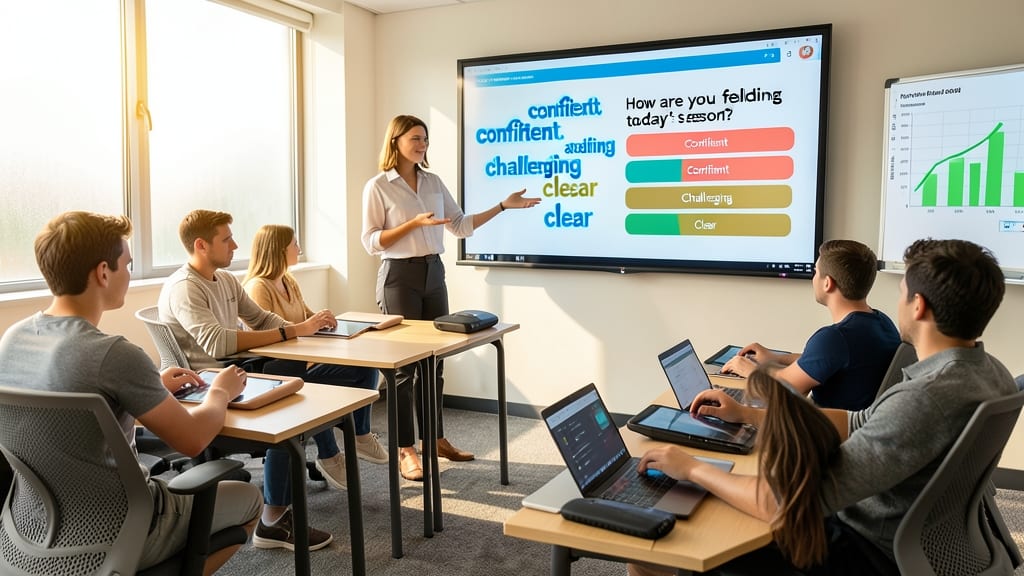
Tired of crickets during discussions or guessing whether students actually got the lesson? Microsoft Teams’ built-in polls and quizzes turn passive learners into active participants with just a few clicks.
Create live polls (multiple-choice or word clouds) to gauge understanding mid-lesson, or use exit tickets to quickly assess comprehension before students leave. The anonymous response feature lets shy students contribute without fear of judgment, while real-time results help you adjust teaching on the fly. With no extra apps needed, these tools integrate seamlessly into meetings or chats—ideal for formative assessments in history, science, or even PE classes.
Perfect for teachers balancing engagement with efficiency, these features work equally well for large lectures or small-group discussions. Try a quick quiz to spark curiosity—or let students vote on discussion topics—and watch participation soar. ✨
Accessibility features for inclusive learning
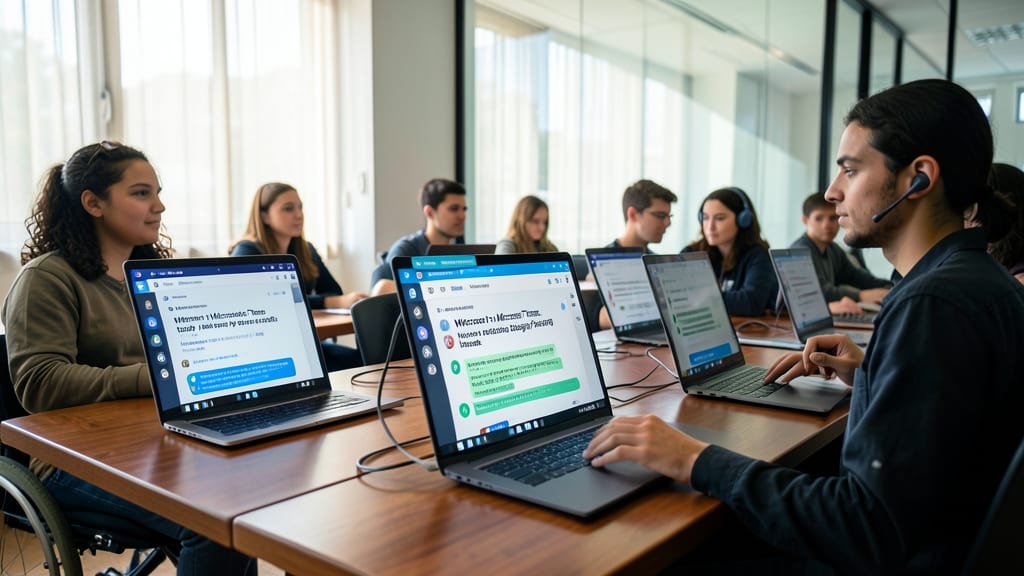
Every student deserves equal access to learning—but not every digital classroom makes that easy. Microsoft Teams bridges that gap with built-in accessibility tools designed to ensure no student is left behind, whether they rely on live captions, screen readers, or adjustable text.
Enable real-time captions during video lessons to support hard-of-hearing students, or adjust font sizes and contrast for visually impaired learners with a single click. The platform also integrates seamlessly with screen readers like JAWS and NVDA, letting students with visual impairments navigate assignments independently. For teachers, the Immersive Reader tool breaks down complex text into simpler sentences and highlights parts of speech—ideal for ESL students or those with dyslexia.
This isn’t just compliance—it’s inclusive education in action. Special education teachers, ESL instructors, and general educators alike will find these tools transformative for creating a truly equitable learning environment. ✨
Offline mode for unreliable internet
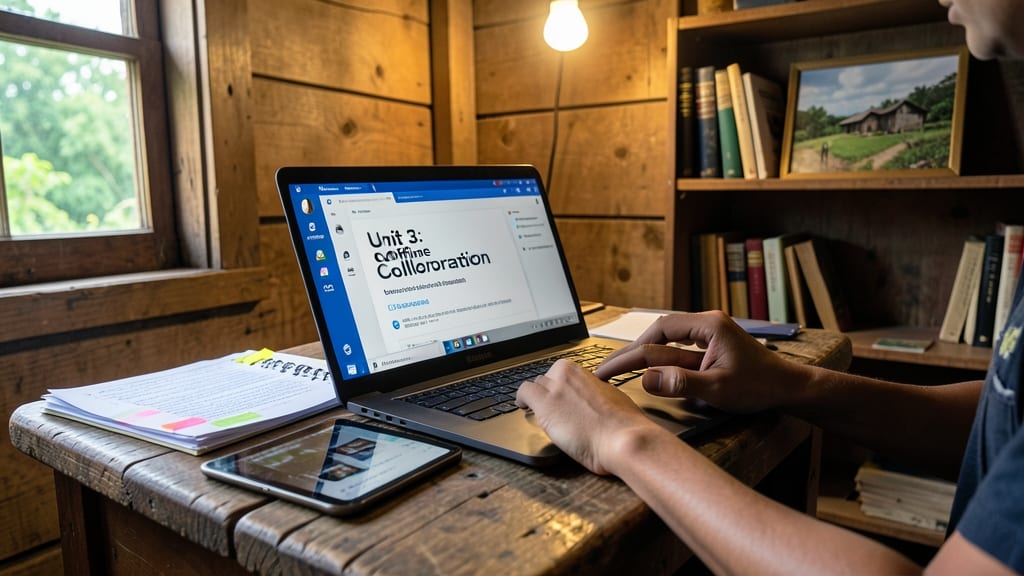
When internet access is spotty or nonexistent, Microsoft Teams keeps learning on track with its offline mode—a lifesaver for rural schools or districts with unreliable connectivity. Teachers can pre-download entire lesson plans, student assignments, and multimedia files to access anytime, anywhere, ensuring no student misses out due to technical barriers.
The feature works seamlessly with OneDrive integration, letting you cache up to 10GB of files locally for offline use. Whether you're grading papers during a power outage or reviewing materials in a library with limited Wi-Fi, Teams syncs changes automatically when you reconnect. Plus, students can submit assignments offline, which sync once their device regains connection—eliminating the "I forgot to upload" excuse. 💻