
Coding
Struggling with messy text data in Excel? These 10 powerful text functions will transform raw data into clean, organized information with minimal effort. Perfect for analysts, business users, and anyone tired of manual text editing.
Concatenate Function for Merging Text Cells

Tired of manually typing full names or merging split data in Excel? The CONCATENATE function is your secret weapon for combining text from multiple cells with just one formula—no typing required.
This function merges up to 255 text items (cells, text strings, or numbers) into a single result. For example, if FirstName is in cell A2 and LastName in B2, =CONCATENATE(A2, " ", B2) instantly creates "John Doe." It works in Excel 2007 and later, including Office 365, and even handles spaces or delimiters like commas effortlessly.
Perfect for HR databases, customer lists, or inventory spreadsheets where names or codes are split across columns. It’s the fastest way to clean up messy data before analysis or reporting. ✨
Text Function to Extract Specific Characters

When your data hides critical details like ZIP codes or product IDs within messy text strings, the TEXT function becomes your precision tool. Unlike basic extraction methods, it lets you specify exact character positions to pull out only what you need—no more guessing or manual copying.
Use =TEXT(value, format_text) to define where data starts and ends. For example, extract a 5-digit ZIP code from "Shipping: 123 Main St, Springfield, IL 62704" by referencing positions 28-32. This function works seamlessly in Excel 2016 and later, including Office 365, and pairs perfectly with data validation workflows.
Perfect for logistics teams validating addresses, e-commerce managers parsing order numbers, or analysts cleaning datasets. This is the go-to for when you need pixel-perfect text extraction. ⚡
Left Right and Mid Functions for Partial Text

Need to pull out just the first few characters, the last segment, or a specific middle chunk of text? The LEFT, RIGHT, and MID functions give you surgical precision for extracting partial text without writing custom formulas. These are the go-to tools when you need to isolate order numbers, pull initials, or grab product codes from messy data.
LEFT extracts characters from the start (e.g., =LEFT(A1,3) grabs the first 3 letters of "Excel2023" → "Exc"), RIGHT does the same from the end (e.g., =RIGHT(A1,4) → "2023"), and MID lets you target any segment (e.g., =MID(A1,5,4) → "2023" from "Excel2023"). All three work across Excel versions and handle dynamic ranges with ease—no arrays or complex logic required.
Perfect for reporting dashboards where you need to display just part of a reference number, or for data validation when cleaning up inconsistent text entries. These functions save hours of manual copying and pasting. ✨
Trim Function to Clean Extra Spaces

Tired of wasted hours scrubbing extra spaces from imported data? The TRIM function is Excel’s secret weapon for instantly cleaning messy text—removing leading, trailing, and duplicate spaces between words in a single step.
With just =TRIM(text), you can fix common issues like copy-pasted data with hidden spaces or CSV imports with inconsistent formatting. It’s perfect for preparing text for analysis, ensuring accurate sorting, or making data look professional before sharing. Unlike manual fixes, TRIM handles all space-related clutter automatically—no more tedious Find/Replace sessions.
This function is a lifesaver for data analysts, marketers, and small business owners working with imported datasets. Try it next time you’re stuck with messy text—your future self will thank you! ✨
Proper Function for Consistent Text Formatting
Tired of manually capitalizing names in customer lists or reports? The PROPER function in Excel automates this tedious task, ensuring every word starts with a capital letter while the rest remain lowercase—perfect for professional documents and databases.
To use it, simply type =PROPER(A1) where A1 contains your text. For example, "john doe" instantly becomes "John Doe", while "microsoft corporation" transforms into "Microsoft Corporation". This function works seamlessly across all Excel versions, including Office 365, and handles edge cases like apostrophes and hyphens automatically.
Ideal for marketers, HR professionals, or anyone managing client databases, PROPER saves hours of manual formatting. Try it on your next mailing list or report for polished, consistent results every time. ✨
Substitute Function to Replace Specific Text
When your data has inconsistent formatting—like commas instead of semicolons or mixed abbreviations—SUBSTITUTE is your secret weapon. This function lets you replace specific text patterns across entire columns with just one formula, saving hours of manual edits.
Use it to standardize CSV imports (e.g., SUBSTITUTE(A1, ",", ";")), remove special characters (SUBSTITUTE(A1, "!", "")), or expand abbreviations (SUBSTITUTE(A1, "USA", "United States")). The syntax is simple: =SUBSTITUTE(text, oldtext, newtext, [instancenum]), where instancenum lets you replace only the first occurrence or all instances.
Perfect for data analysts cleaning imports, marketers standardizing product lists, or anyone tired of fixing messy text manually. ⚡
Find Function to Locate Text Positions

When debugging messy datasets, the FIND function becomes your detective tool—pinpointing where specific text hides in cells to fix errors or extract hidden data.
Unlike SEARCH (case-insensitive), FIND requires exact matches and returns the starting position of text. For example, =FIND("Error",A1) locates "Error" at position 15 in cell A1, letting you dynamically extract substrings with MID. It’s perfect for validating data formats or isolating critical keywords in unstructured text.
Data analysts and quality assurance teams will love this for automating error checks in logs or transaction records. 💡
Len Function for Character Counting
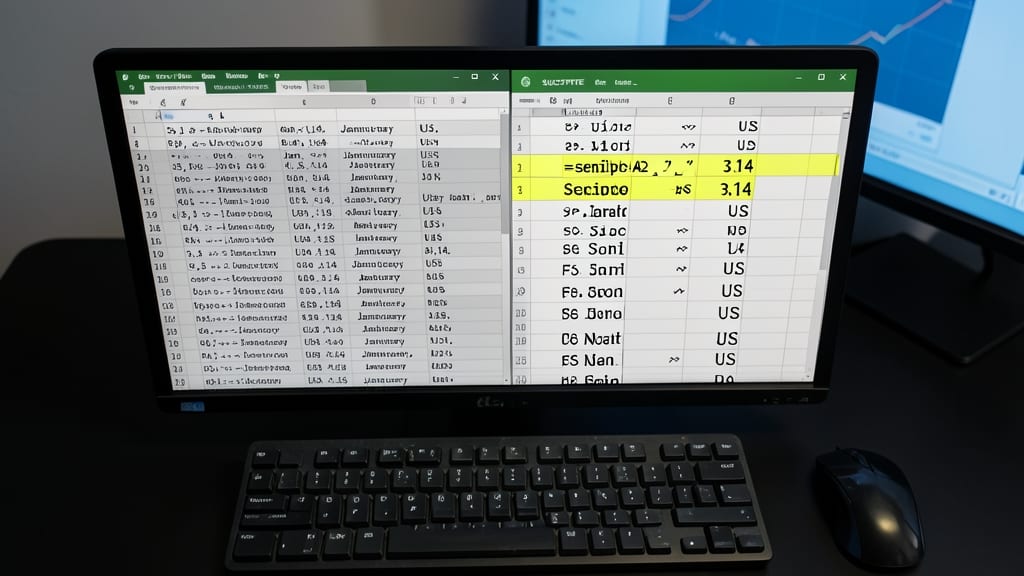
Need to ensure phone numbers, product codes, or passwords meet strict length requirements? The LEN function is your secret weapon for enforcing character limits in Excel with zero effort.
Simply type =LEN(A1) to count characters in cell A1—perfect for validating 10-digit phone numbers, 12-character passwords, or 500-word limits. Combine it with IF statements to flag invalid entries instantly. Works in all Excel versions, including mobile apps.
Data analysts and CRM managers will love this for maintaining consistency—no more manual counting or guesswork. ⚡
Upper Lower and Proper Functions for Case Conversion
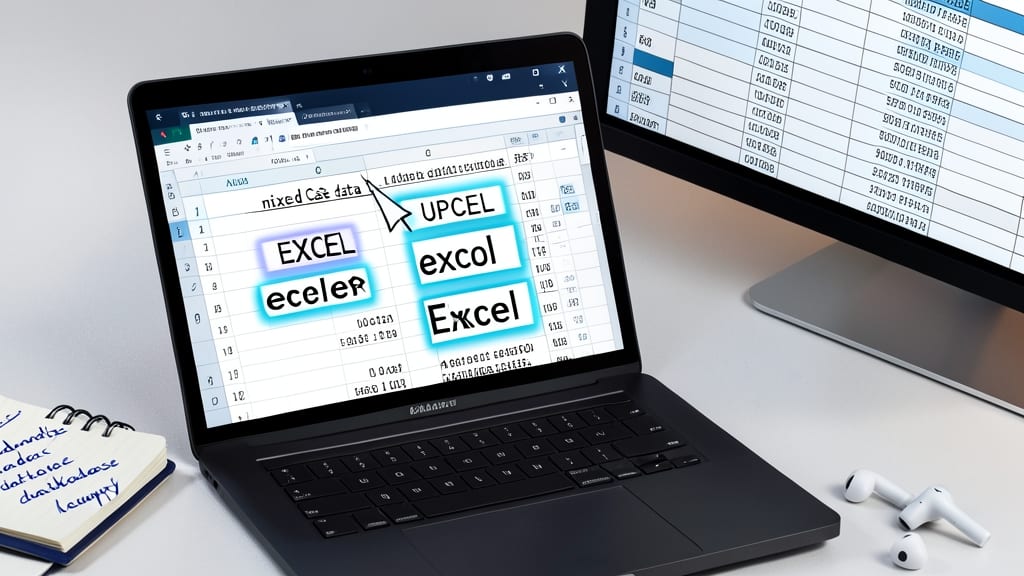
Tired of inconsistent text case ruining your data's professionalism? The UPPER, LOWER, and PROPER functions instantly standardize text for reports, databases, or presentations—no manual editing required.
Use UPPER("text") to convert all characters to uppercase (e.g., "EXCEL"), LOWER("text") for lowercase (e.g., "excel"), and PROPER("text") to capitalize each word correctly (e.g., "Excel"). These work across all Excel versions, including Office 365, and handle thousands of cells in seconds. Perfect for cleaning up customer lists or ensuring uniform headers.
Accountants standardizing financial reports and marketers formatting email campaigns will love these functions. They’re the secret weapon for zero-config text consistency. ✨
Textjoin Function for Advanced Text Combination

Tired of CONCATENATE failing when your datasets have empty cells or inconsistent delimiters? TEXTJOIN solves this with a single, flexible formula—available exclusively in Office 365 and later versions.
This function lets you combine text from multiple cells while specifying a custom delimiter (like commas or semicolons) and automatically skipping empty cells. For example, =TEXTJOIN(", ", TRUE, A1:D1) merges columns A through D with a comma separator, ignoring any blank entries. It also handles line breaks and special characters seamlessly, making it ideal for generating CSV exports or cleaning up survey data.
Perfect for data analysts, marketers, or anyone working with complex datasets where traditional concatenation falls short. Give it a try—your spreadsheets will thank you! ⚡