
PowerPoint
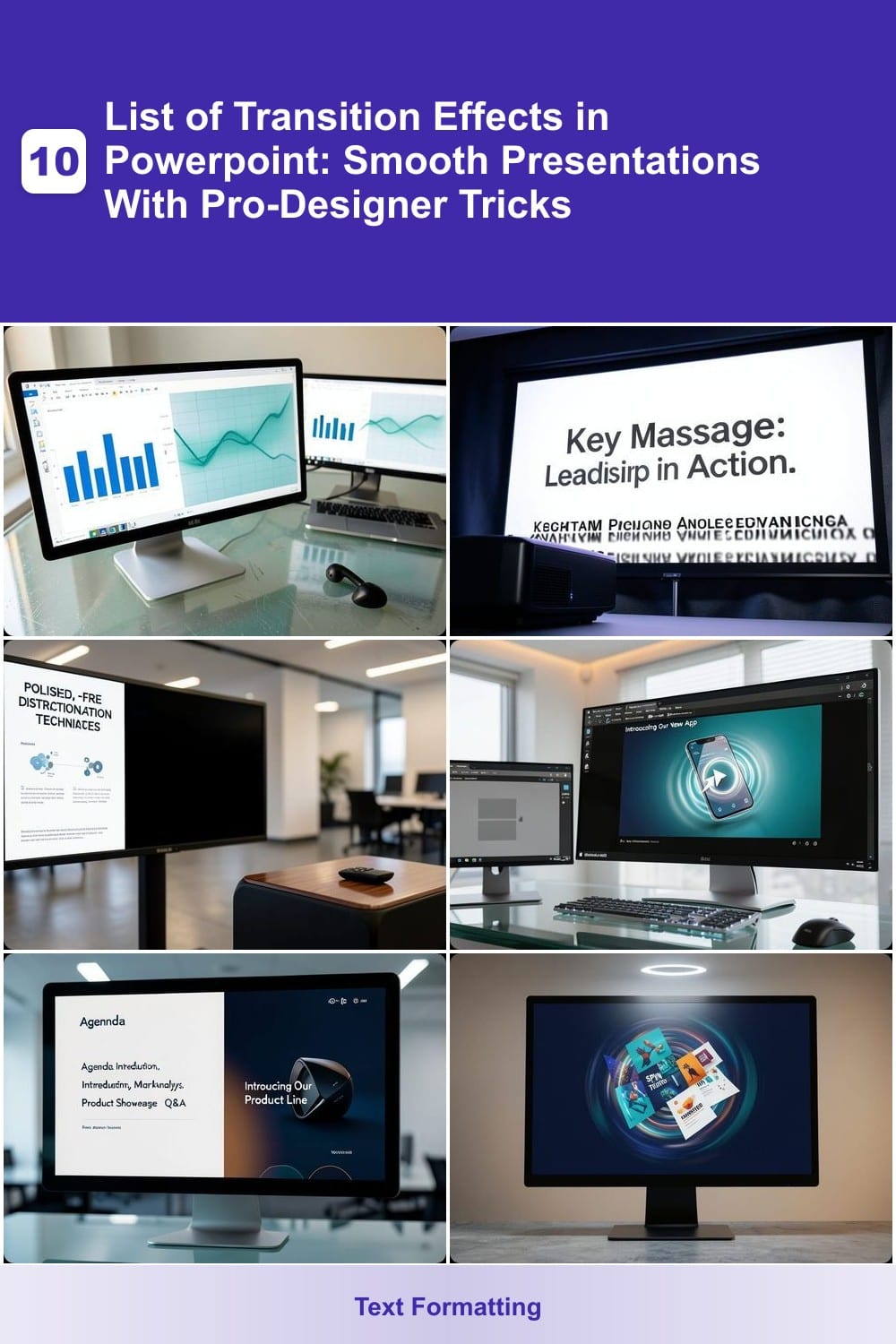
Elevate your PowerPoint presentations with these seven underrated transition effects that add professional polish without overwhelming your audience. Mastering these subtle yet impactful tools will make your slideshows look like they were designed by experts.
Morph Transition for Seamless Data Visualization
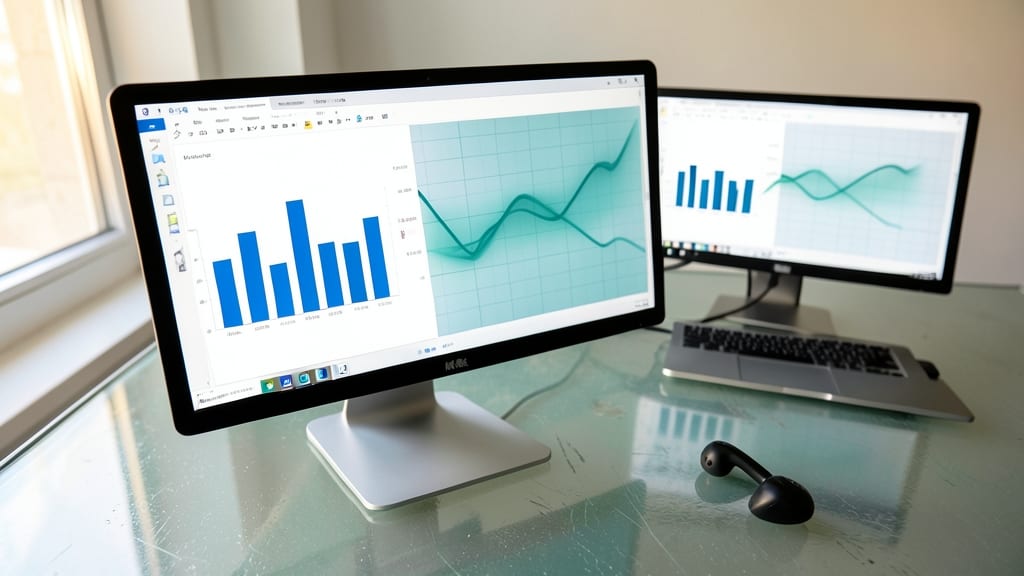
Tired of jarring slides that break your data narrative? The Morph transition in PowerPoint smoothly reshapes objects—like converting a bar chart to a line graph—while preserving your audience’s focus. Unlike abrupt cuts, this effect uses smooth interpolation to maintain visual continuity, making complex data comparisons effortless.
Available in PowerPoint 2013 and later, this transition works best with shapes, charts, and SmartArt (but avoid text-heavy slides). Adjust the transition speed (0.5–3 seconds) to control pacing, and pair it with subtle color gradients for polished financial or analytical decks. Pro tip: Use it to highlight trends without overwhelming your audience.
Perfect for analysts, educators, or executives presenting data-driven insights—where clarity trumps flashy effects. ⚡
Push Transition for Dramatic Text Reveals
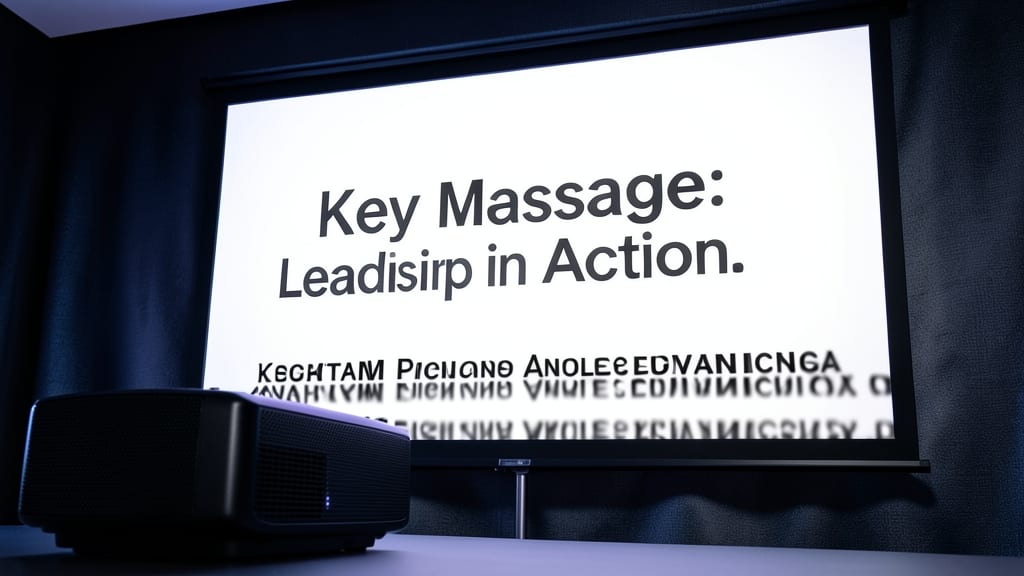
Want to make your keynote slides feel like a blockbuster movie? The Push transition delivers text with a bold, cinematic effect—perfect for emphasizing key messages in training modules or executive speeches.
This transition pushes content onto the screen from the sides, top, or bottom, creating a dynamic reveal that grabs attention. You can adjust the speed and direction to match your presentation’s tone, and it works seamlessly in PowerPoint 2016 and later, including the desktop and online versions. Pair it with a dark background for maximum impact.
Ideal for trainers, speakers, or anyone delivering high-stakes content, this effect ensures your audience focuses on the right words at the right time. ✨
Fade Through Black for Classic Elegance
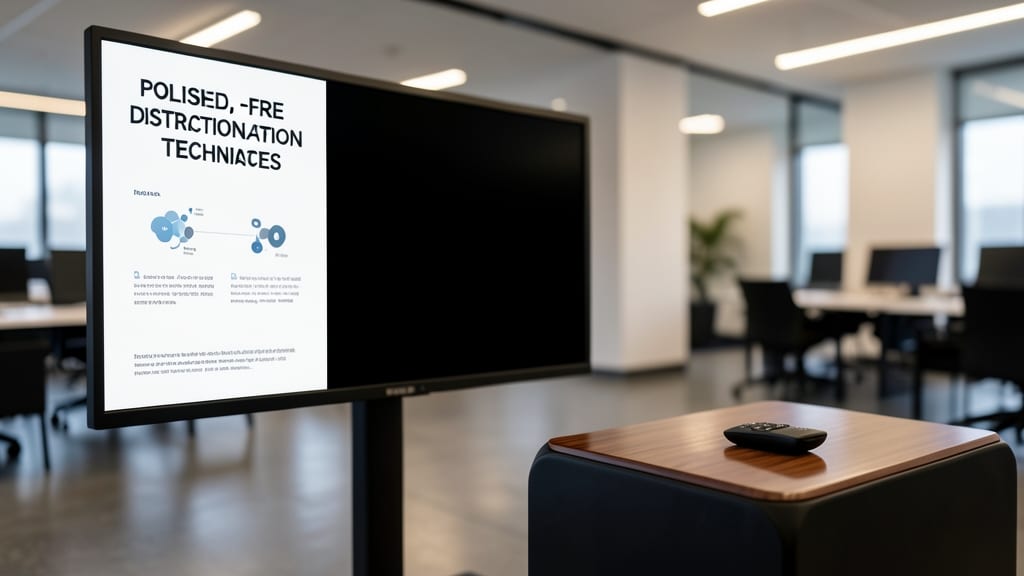
When your presentation demands sophistication without flash, Fade Through Black delivers a polished, distraction-free experience. Unlike flashy effects, this transition smoothly fades slides into a solid black screen before revealing the next one—ideal for maintaining focus on your message.
The zero-configuration simplicity makes it perfect for corporate reports or boardroom decks, where minimalism reinforces professionalism. Adjust the transition speed to control pacing, and pair it with white or monochrome text for maximum contrast. It’s also universally compatible across PowerPoint versions.
Lawyers, executives, and academics will appreciate how this effect keeps audiences engaged without sensory overload. 💻
Zoom Transition for Highlighting Key Slides
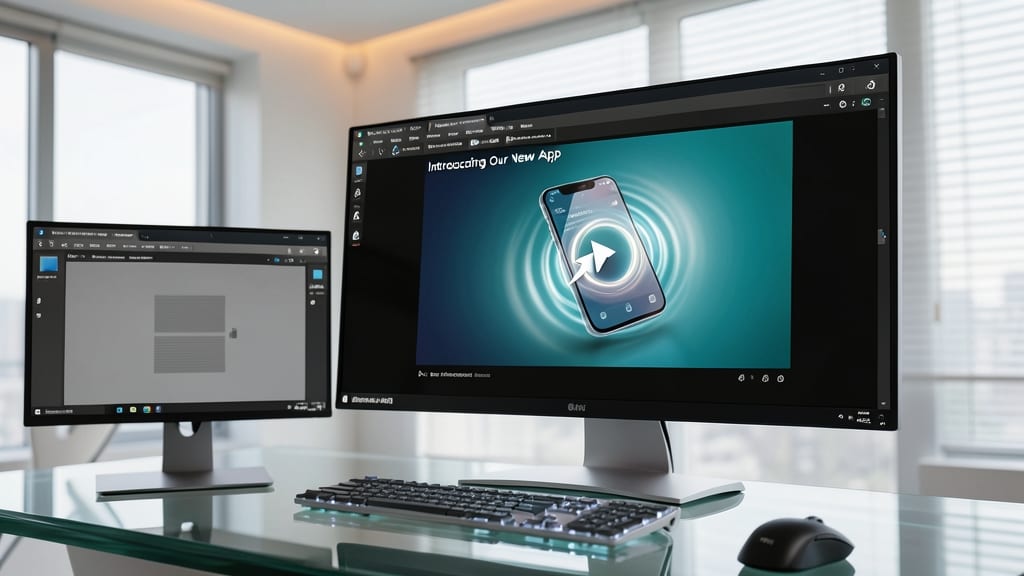
When you need to make a product demo or pitch deck slide stand out, the Zoom Transition is your secret weapon. Unlike subtle fades or dramatic pushes, this effect magnifies your content—literally drawing the audience’s eye to the most important visuals.
Available in PowerPoint 2016 and later, this transition lets you zoom in or out from a central point, creating a cinematic effect that feels polished yet engaging. Pair it with a 0.5-1.0 second duration for smoothness, and avoid overusing it—reserve it for 3-5 key slides per presentation to maintain impact. The effect works best with high-contrast visuals (like product mockups or data highlights) where clarity matters.
Perfect for sales teams, designers, and educators, this transition turns passive viewers into active participants by framing critical moments naturally. Just don’t overdo it—subtlety keeps the focus where it belongs. ✨
Wipe Transition for Clean Section Breaks
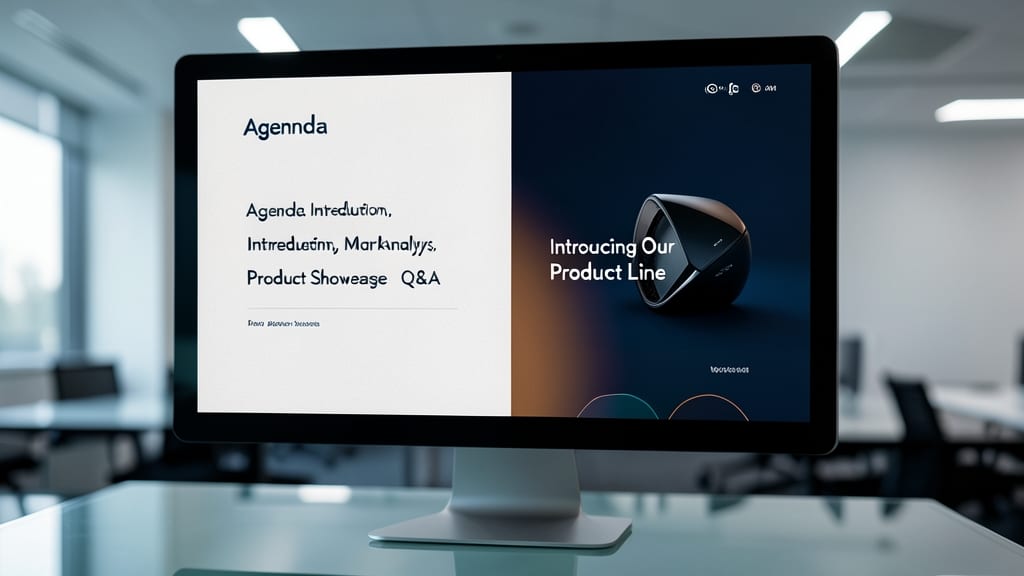
Need a polished, professional way to signal a shift in your presentation—like moving from an agenda to your main content? The Wipe transition delivers a clean, intentional break without overwhelming your audience.
Available in horizontal, vertical, or diagonal directions, this effect works seamlessly in PowerPoint 2016 and later, including the desktop and online versions. Unlike flashy transitions, it subtly replaces one slide with another using a sweeping motion, keeping focus on your message. Pair it with a 0.5- to 1-second timing for a smooth yet deliberate pause—perfect for transitions between logical sections.
Trainers, educators, and corporate presenters will love this for its minimalist professionalism. It’s the go-to choice when you want to organize content visually without sacrificing clarity. ✨
Spin Transition for Creative Storytelling
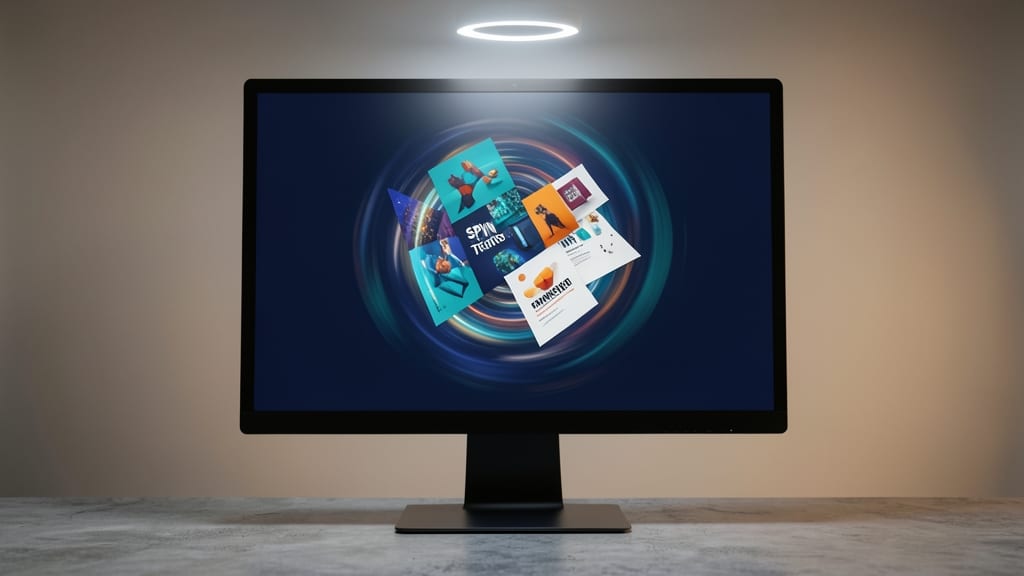
Need to make your design reviews or brainstorming sessions pop? The Spin Transition in PowerPoint adds a 3D rotational flair that turns static slides into dynamic storytelling moments. Unlike basic fades or wipes, this effect creates a circular motion that feels cinematic—perfect for showcasing visual concepts, mood boards, or creative concepts where movement enhances the message.
You can customize the rotation axis (horizontal, vertical, or diagonal) and adjust the speed to match your presentation’s energy. Pair it with gradient backgrounds or geometric shapes for extra visual impact, and use it sparingly—just 1-2 slides—to keep the focus on your ideas without overwhelming the audience. The effect works seamlessly in PowerPoint 2016 and later, including the desktop and online versions.
Designers, artists, and marketers will love this transition for its ability to visually connect ideas—like spinning a concept board to reveal new angles. Try it when you want to energize a creative pitch or guide your audience through a visual journey. ✨
Random Bars Transition for Playful Energy
Tired of the same old slide transitions? The Random Bars effect turns your presentations into an interactive experience by replacing slides with colorful, animated bars that feel like a digital game. This isn’t just a transition—it’s a mood booster that keeps young audiences (or playful professionals) engaged with its unpredictable, energetic style.
Each slide shift reveals content through dynamic, multicolored bars that move in random patterns, creating a sense of excitement. You can adjust the speed and color scheme to match your presentation’s vibe, and it works seamlessly in PowerPoint 2016 and later, including the desktop and online versions. The effect is especially effective when paired with bright backgrounds or educational themes.
Perfect for educators, trainers, or youth leaders who want to break the monotony of traditional slides. Use it to introduce new topics, highlight key takeaways, or even as a fun reward for participation. Just don’t overdo it—keep it playful, not distracting! ✨