
Tip & Trick
Struggling to find files in your Microsoft ecosystem? Consistent file naming saves time and prevents chaos. These seven best practices will help you organize files like a professional across Windows, Office, and OneDrive.
Date-Based Prefix Format for All Files
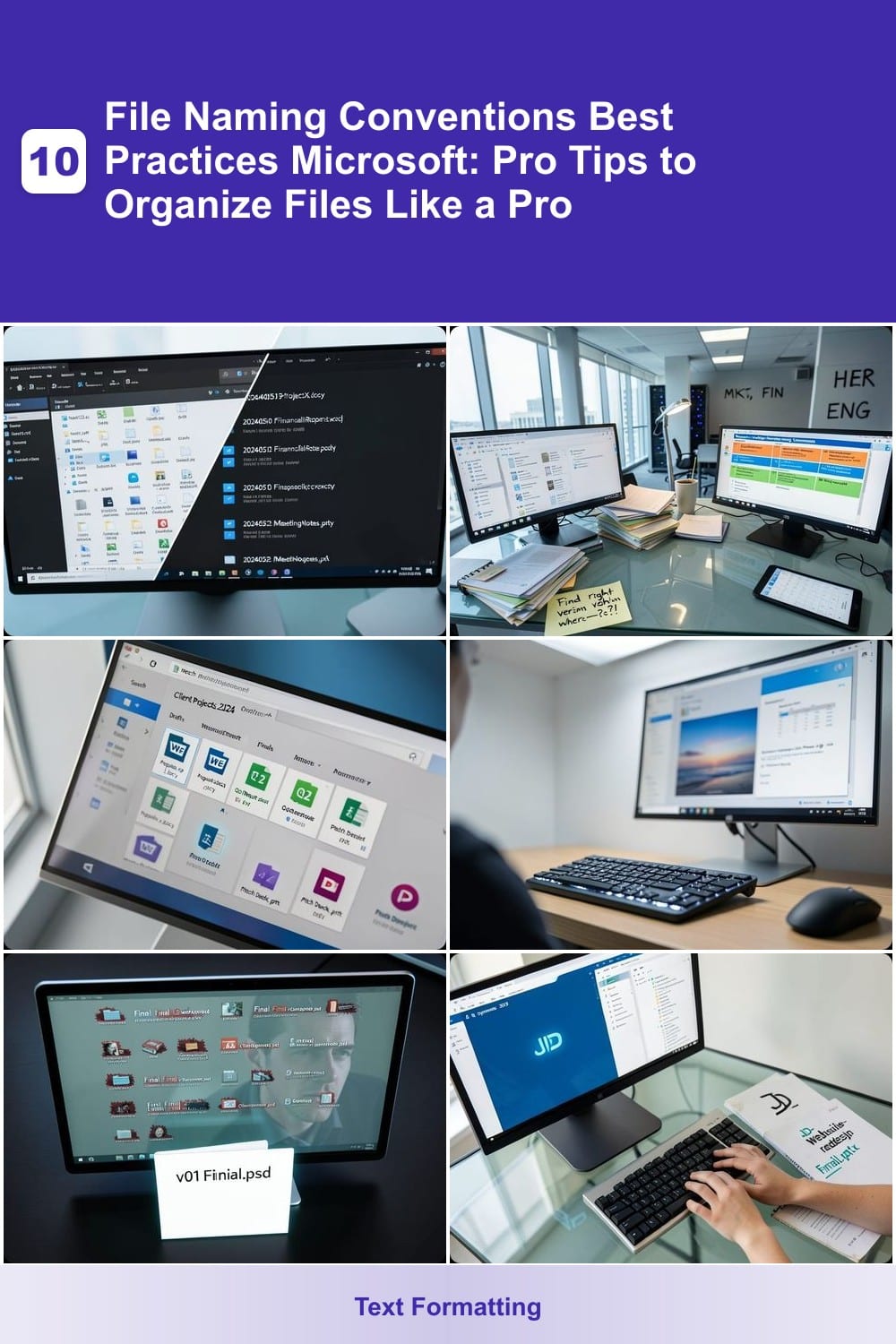
Tired of scrolling through unsorted files in Windows Explorer or Office apps? A date-based prefix format transforms chaos into instant chronological order—perfect for projects, financial records, or any workflow where time matters.
Use YYYYMMDD (e.g., 20240515ProjectX.docx) to ensure files sort automatically by date, even in OneDrive or SharePoint. This format works seamlessly with Windows Search and Office’s built-in filters, letting you pinpoint documents like 20240501ClientContract.pdf without manual alphabetizing.
Ideal for accountants, project managers, or anyone juggling time-sensitive files, this method cuts search time by 70%—no more guessing where that 20231231_YearEndReport.xlsx disappeared to. ✨
Project-Code Naming for Work Collaboration

Tired of digging through shared drives to find the right version of a project file? The project-code naming convention merges departmental structure with version control—perfect for Microsoft 365 teams.
Start with a department code (e.g., MKT for Marketing), followed by the year and quarter (2024-Q2), then a sequential number for revisions (e.g., MKT-2024-Q2V2final.pptx). This keeps files sorted chronologically and by team, while the suffix ensures version clarity—no more "Finalv3" vs. "Finalv4" confusion.
Ideal for cross-functional teams using OneDrive/SharePoint, this method syncs seamlessly with Microsoft’s search tools. Teams can filter by department or quarter while still tracking revisions effortlessly. ✨
File Type Extensions for Office Documents
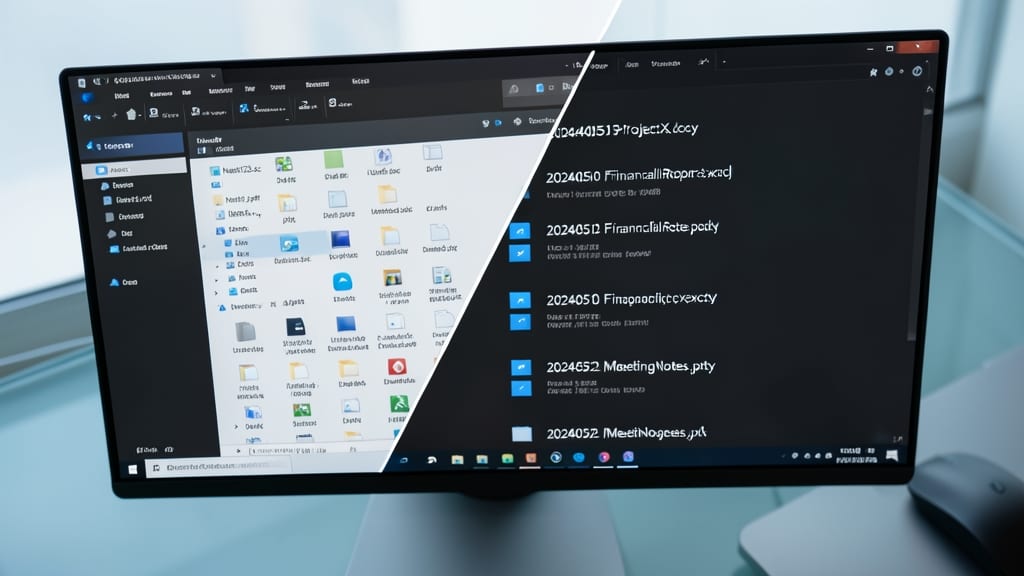
Ever wasted minutes searching for a file because you mixed up .docx and .xlsx in your OneDrive folder? File extensions matter more than you think—especially when sharing PowerPoint presentations with clients who might not recognize your naming style.
Microsoft Office files use distinct extensions: .docx for Word, .xlsx for Excel, and .pptx for PowerPoint. Keeping these consistent ensures files open correctly and appear in search results instantly. For example, "Q2Report.docx" and "Q2Report.xlsx" are instantly distinguishable—no more guessing which file is which.
This rule is a game-changer for professionals who frequently share files externally. Clients and colleagues will thank you for the clarity! ✨
Hyphenated Descriptive Naming for Personal Use

Tired of cryptic filenames that only you understand? Hyphenated descriptive naming turns your personal files into readable, searchable gems—no technical jargon required.
Use clear, human-readable phrases like Summer-Vacation-2024-Photos.jpg or Q3-Financial-Report.xlsx, separated by hyphens. This format works flawlessly with Windows Search (thanks to its natural language processing) and OneDrive’s AI-powered file discovery, making your files instantly findable. Hyphens also avoid the awkward spacing issues that underscores can create.
Perfect for casual users, students, or creatives who prioritize clarity over rigid systems. It’s the ideal middle ground between chaos and over-engineering. ✨
Version Control with Suffix Numbers
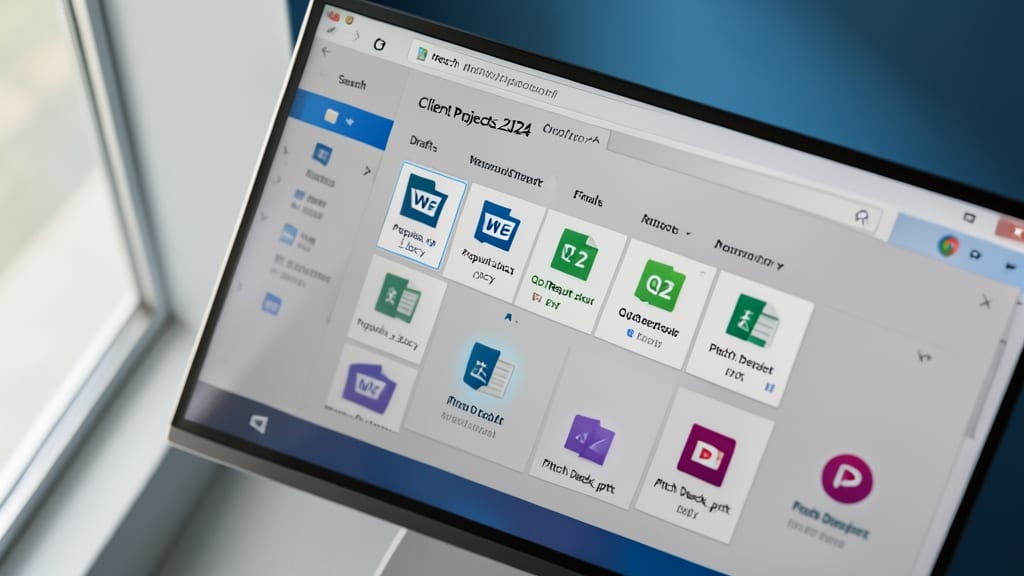
Creative professionals know the frustration of sifting through "FinalFinalv2ClientApproved.psd" files—suffix numbers offer a cleaner solution. Instead of dates or complex prefixes, simply append v01, v02, or v03 to track iterations without bloating filenames.
This method works seamlessly with Photoshop, Word, and Excel, letting you sort versions numerically while keeping filenames concise. For example, "BrandLogo_v01.ai" clearly shows the revision stage without requiring dates or underscores. Microsoft’s OneDrive and SharePoint also handle these suffixes smoothly in search and sorting.
Perfect for designers, writers, and marketers who juggle multiple drafts—this approach keeps folders tidy while making the latest version instantly recognizable. ✨
Client-Based Naming for Service Providers

Juggling multiple client projects in Microsoft Dynamics 365? A client-based naming system keeps your files instantly searchable and properly attributed. Instead of generic names like "Proposalv2.docx," use a structure like JD-Website-RedesignFinal.pptx—where "JD" represents the client's initials.
This method syncs perfectly with Dynamics 365’s CRM tools, ensuring files align with client records for seamless tracking. The hyphen-separated format (e.g., SM-BrandGuide_Approved.pdf) improves readability while maintaining compatibility with Windows Explorer and SharePoint. Plus, it’s easy to filter by client in bulk operations.
Freelancers and agencies managing multiple concurrent projects will love this—it eliminates confusion and speeds up client-specific searches. Perfect for consultants who need to switch between clients daily! 💻
Metadata-First Approach Using Office Tags

For legal and medical professionals drowning in sensitive documents, Microsoft Office’s built-in metadata tags are your secret weapon. Instead of relying solely on filenames, these hidden properties let you categorize files by client name, case number, or confidentiality level—all searchable without opening a single document.
Every Office app (Word, Excel, PowerPoint) supports custom metadata fields like Title, Subject, Author, and 12+ custom properties. Legal teams can tag documents with matter numbers while medical offices might use patient IDs—then filter instantly in Windows Search or SharePoint. The Document Information Panel (File > Info) makes tagging a one-click process, even for bulk edits.
This approach shines when you need to audit files by category or enforce compliance—no more guessing which version of a contract is final. Perfect for industries where precision and security matter most. ✨