
Tip & Trick
Microsoft SharePoint can feel overwhelming for new users, but these eight beginner-friendly tips will help you navigate its core features effortlessly. From document management to collaboration tools, master the essentials without technical jargon or complex setups.
Understand SharePoint homepage customization basics
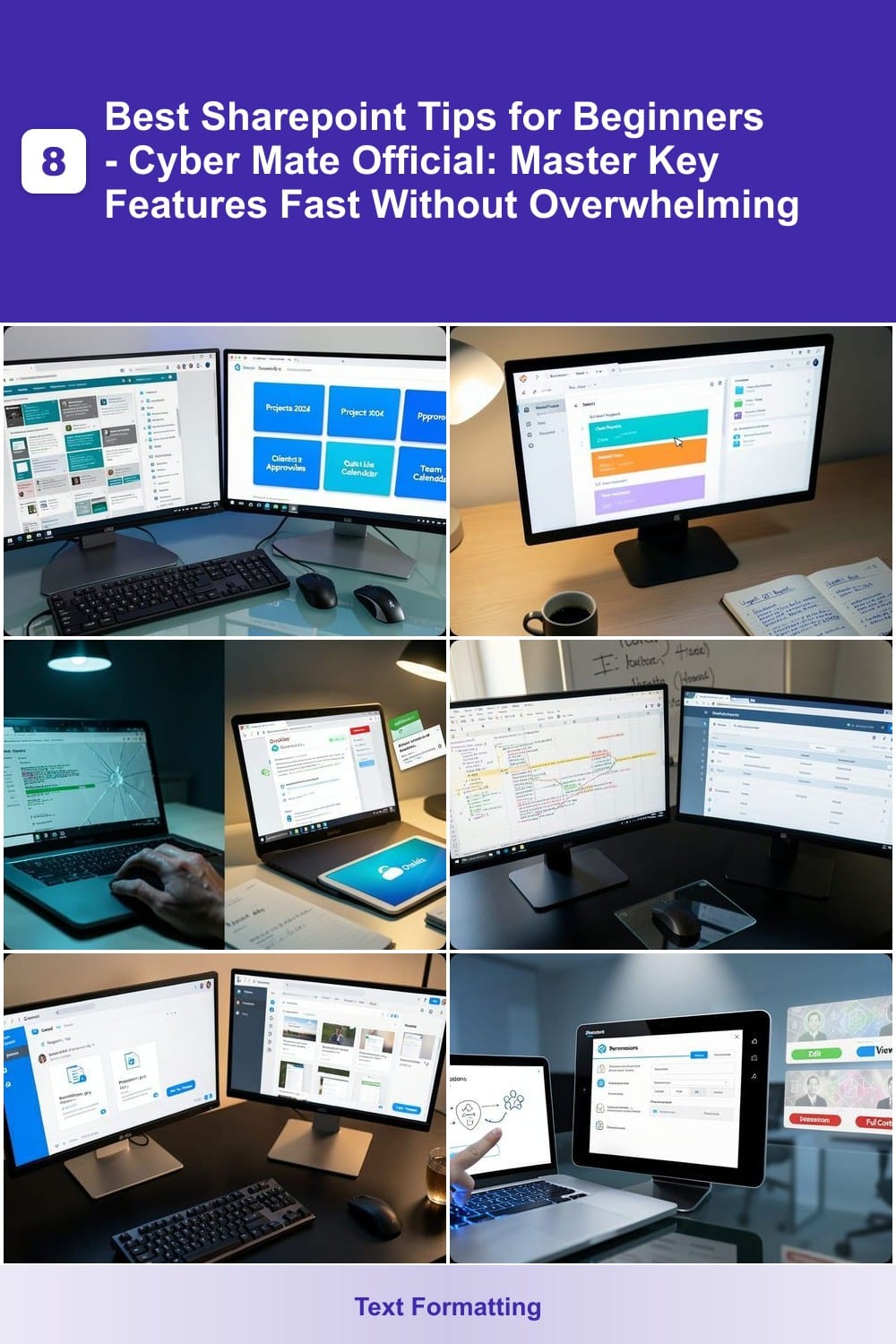
Ever wasted time hunting through SharePoint’s default homepage for the files or tools you use daily? With just a few clicks, you can turn that cluttered landing page into a personalized dashboard that puts your most important resources front and center.
Start by editing your homepage to add quick links to frequently visited sites or libraries, news feeds for team updates, and web parts like document libraries or calendars. Drag and resize these elements to create a layout that matches your workflow—no coding required. You can even pin frequently used apps (like Teams or Planner) for one-click access. The best part? These changes sync across devices, so your dashboard looks the same whether you’re on your desktop or mobile.
This trick is perfect for project managers, HR teams, or anyone juggling multiple tools daily. A customized homepage slashes the time spent navigating menus, keeping you focused on what matters most. ✨
Master document library organization
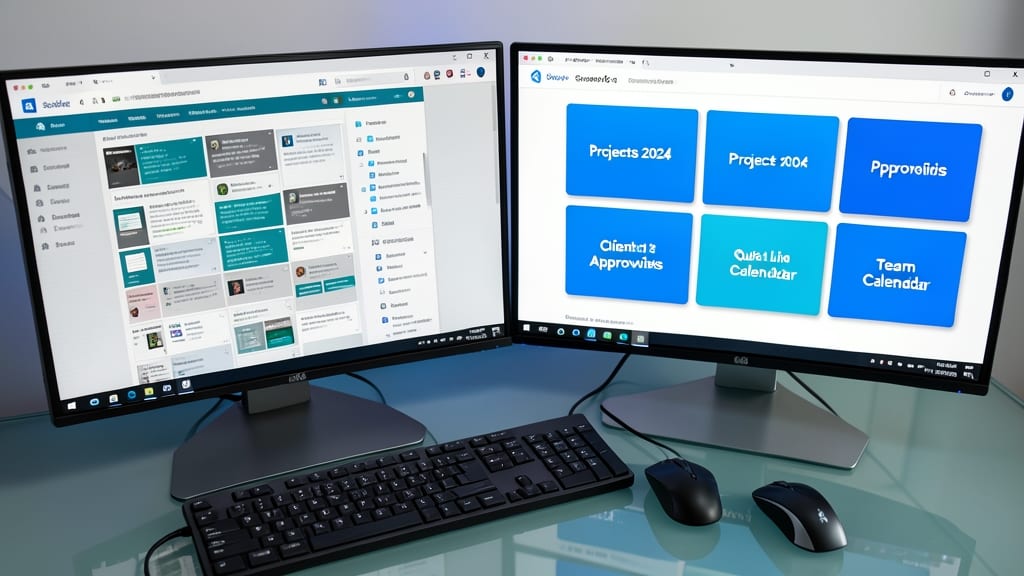
Frustrated by the "where-did-that-file-go?" panic when sharing documents with your team? SharePoint’s document library organization tools turn chaos into clarity—without requiring IT skills. Start by creating color-coded folders (like "Client Projects" or "Internal Docs") to visually separate content, then add metadata columns (e.g., "Project Name," "Status," or "Owner") to make files searchable by key details.
Enable versioning to track edits automatically—no more "finalfinalv3.docx" confusion—and set retention policies to archive old versions. Pro tip: Use column validation (like dropdowns for "Status: Draft/Approved") to enforce consistency across files. These features work seamlessly in SharePoint Online or on-premises, so your team stays organized whether they’re in the office or remote.
This system is a lifesaver for marketing teams, project managers, or anyone drowning in shared drives. Spend less time searching and more time collaborating—while keeping every file accounted for. ✨
Use OneDrive sync for offline access

Tired of waiting for files to load when your Wi-Fi cuts out? OneDrive sync bridges the gap between SharePoint and your local device, letting you edit critical documents offline—then sync changes automatically when you reconnect.
Here’s how it works: Right-click any SharePoint file or folder, select Sync to OneDrive, and it appears in your local File Explorer like a regular folder. Changes sync in real-time (or when you manually refresh), and version history keeps your work safe. The best part? No extra apps—it’s built into SharePoint Online.
This trick is a lifesaver for remote workers, freelancers, or anyone juggling flights and deadlines. Just sync your most-used files, and you’ll never miss a beat. ✨
Leverage SharePoint Lists for simple databases
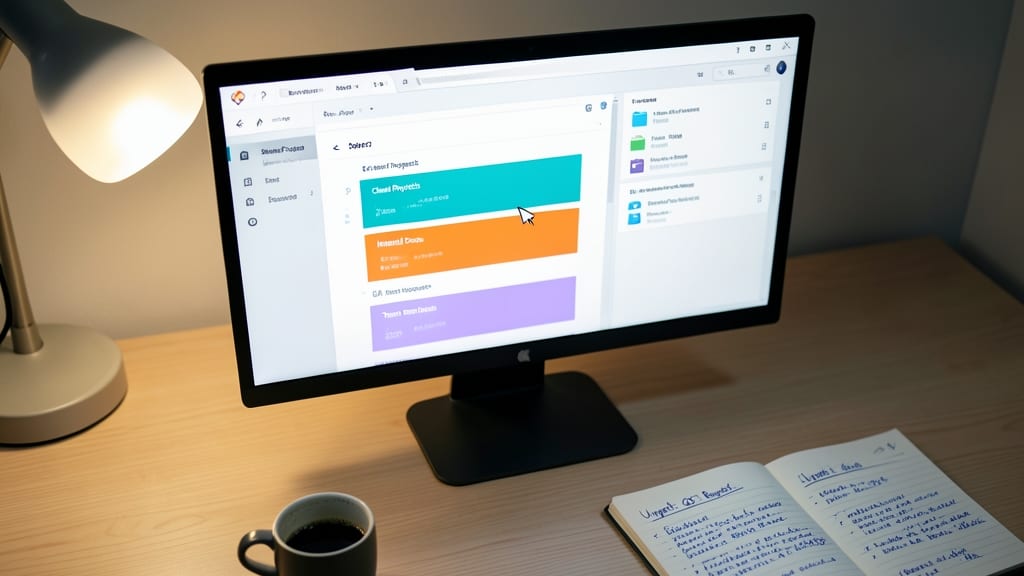
Tired of juggling spreadsheets or struggling with SQL just to track your projects? SharePoint Lists offer a zero-coding solution to create lightweight databases for tasks, inventory, or contacts—all within your familiar SharePoint environment.
With customizable columns (dates, dropdowns, or yes/no fields), views (calendar, Gantt, or grid), and mobile-friendly access, you can build a task tracker in minutes. The best part? No IT skills required—just drag, drop, and share. Integrate with Power Automate later if you need extra automation, but start simple with this built-in tool.
Perfect for small teams, project managers, or anyone drowning in scattered data—no Excel macros or SQL queries needed. ✨
Collaborate with SharePoint teams integration

Tired of bouncing between emails, Teams chats, and SharePoint to find the latest project files? The SharePoint Teams integration solves this by embedding your SharePoint libraries directly into Teams channels—no more tab-switching or lost updates.
With just a few clicks, you can pin SharePoint document libraries as tabs in any Teams channel, giving your team instant access to files, version history, and even co-authoring tools. Need to discuss a file? Start a conversation right in the channel without leaving Teams. The integration also syncs file previews and collaboration comments, so everyone stays on the same page—literally.
This is ideal for teams transitioning from email-based workflows to unified platforms. Whether you're managing client deliverables or internal projects, this seamless bridge keeps everyone aligned and reduces the chaos of scattered tools. ✨
Simplify permissions with SharePoint groups
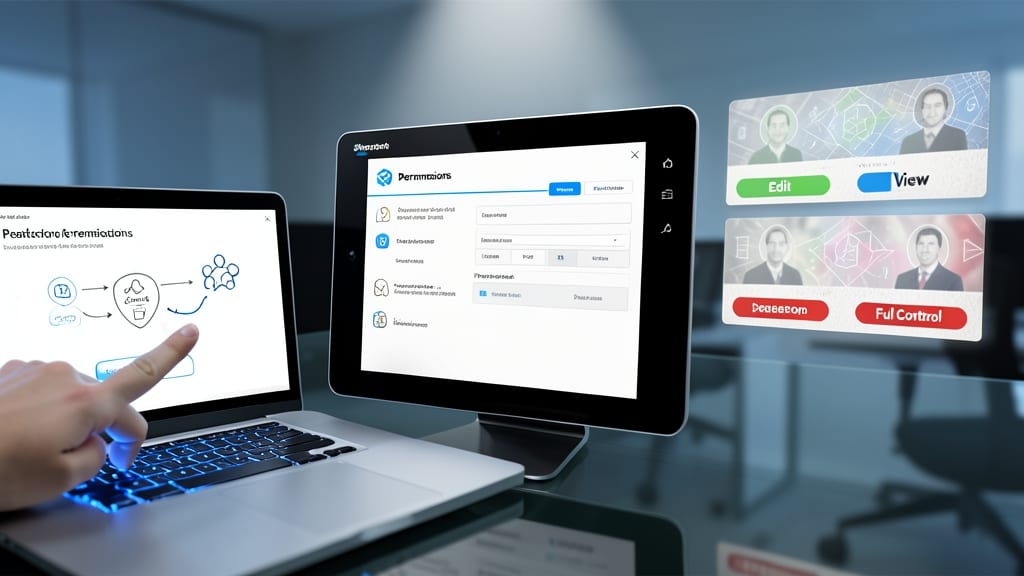
Tired of manually assigning permissions to every team member? SharePoint groups let you assign roles like Edit, View, or Full Control to entire teams at once—no IT help needed. This cuts permission setup time from hours to minutes, especially for projects with rotating contributors.
Create a group for Project Managers, another for Contributors, and assign permissions once. When team members join or leave, simply update their group membership—no need to dig through individual user settings. You can even nest groups (e.g., Marketing Team under All Employees) for granular control. Best of all, these changes sync instantly across all connected sites.
This tip is a game-changer for team leads managing shared drives or departmental sites. No more permission chaos when someone leaves or joins—just update the group. ✨
Automate workflows with Power Automate

Tired of manually approving documents or chasing down team members for file updates? Power Automate lets you create no-code workflows that handle repetitive tasks automatically—no coding skills required. Simply connect SharePoint triggers (like file creation or edits) to actions (emails, approvals, or file moves) using a drag-and-drop interface.
With pre-built SharePoint templates, you can instantly set up flows like "Auto-approve contracts over $5K" or "Notify managers when new project files arrive." The platform integrates seamlessly with Teams, Outlook, and Power Apps, so your automations work across Microsoft’s ecosystem. Best of all, it’s free for basic workflows through your Office 365 subscription.
Perfect for project managers, HR teams, or small businesses—anyone who spends hours on manual processes. Start with a simple "Send a reminder email" flow and watch productivity climb. ✨
Search smarter with SharePoint’s built-in tools

Tired of spending 10 minutes searching for that one document buried in SharePoint’s endless library? The advanced search filters built into SharePoint can cut that time to seconds—if you know where to look.
Start by refining searches with metadata filters like file type (PDF, Excel), author, or custom columns (e.g., "Project Name" or "Status"). Use the "Modified Date" range to pinpoint recent updates, or combine filters for laser-focused results. Pro tip: Save frequently used searches as favorites in the search bar for instant access—no more typing the same queries over and over.
This trick is a game-changer for marketing teams tracking campaign assets, HR departments managing employee files, or freelancers juggling client projects. Master these filters, and you’ll reclaim hours every week. ⚡